Project 5
Zendesk SCIM Provisioning
Architecture
Overview
What was built
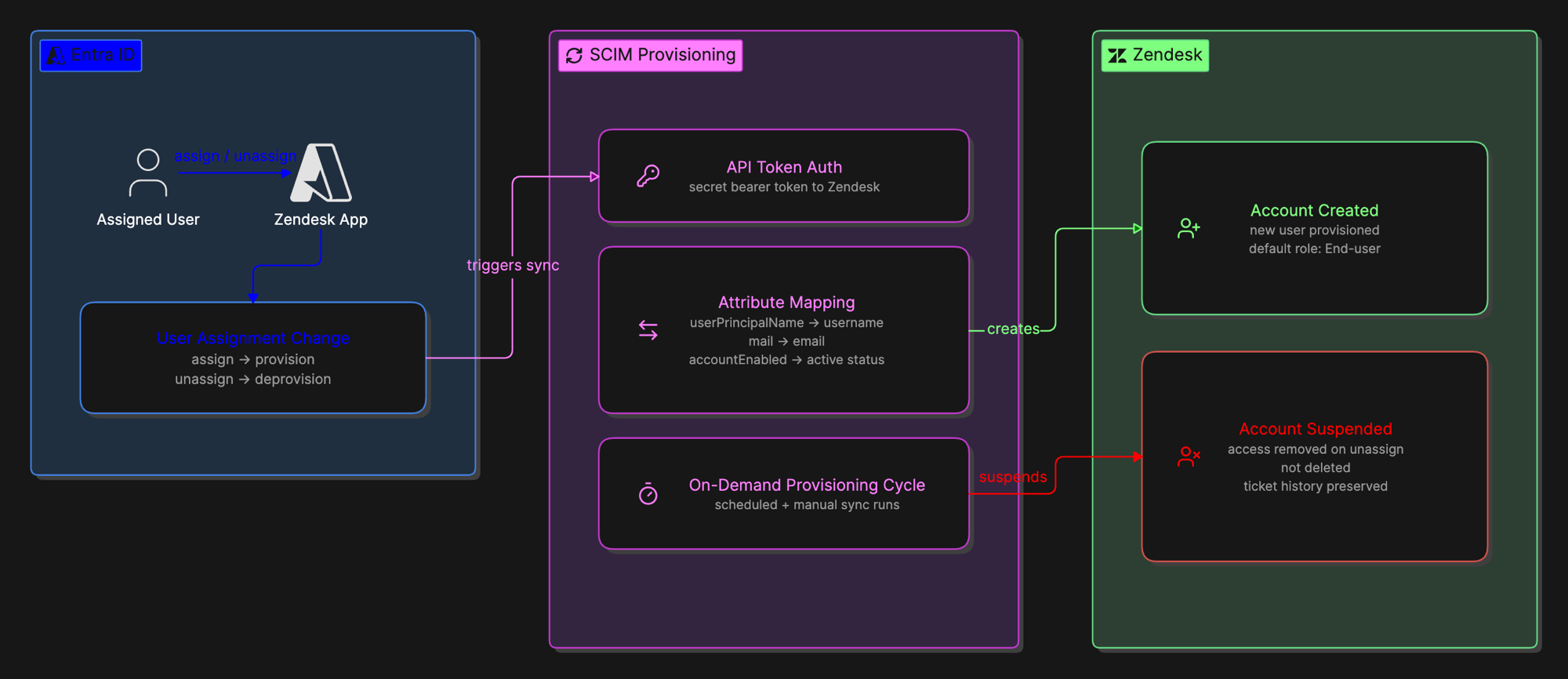
Automated user provisioning and deprovisioning between Microsoft Entra ID and Zendesk, so a user assigned to the Zendesk app in Entra gets created automatically in Zendesk, and a user removed from that assignment gets suspended automatically. This extends the Enterprise SSO project from authentication into full account lifecycle management.
Why
Why it matters
SSO answers whether someone can prove who they are. It does not answer whether their account should exist in the first place. Without automated provisioning, every new hire needs a manual account created in every application they use, and every departure risks leaving an active account behind that nobody remembers to disable.
That gap between someone's actual employment status and what access still exists for them is exactly the kind of thing an access review is supposed to catch after the fact. Automating provisioning closes it before it becomes a finding.
How it works
The walkthrough
Step 1 of 3
Connect Entra to Zendesk
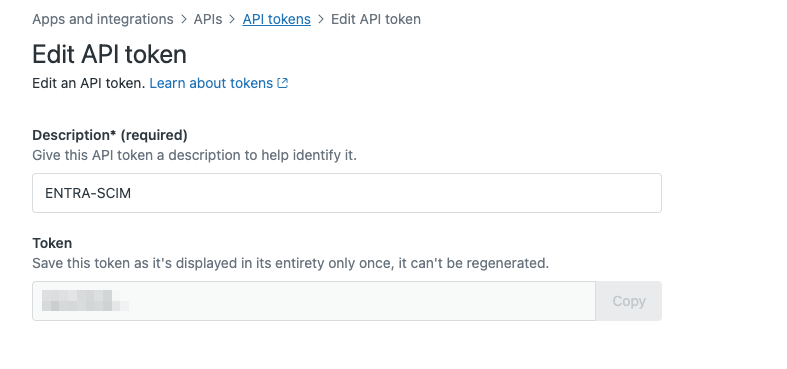
Generated an API token in Zendesk tied to a specific admin account, then configured Entra's provisioning connector to Zendesk using that token, with the admin username matching the account that generated it exactly.
Step 2 of 3
Map attributes and provision a test user
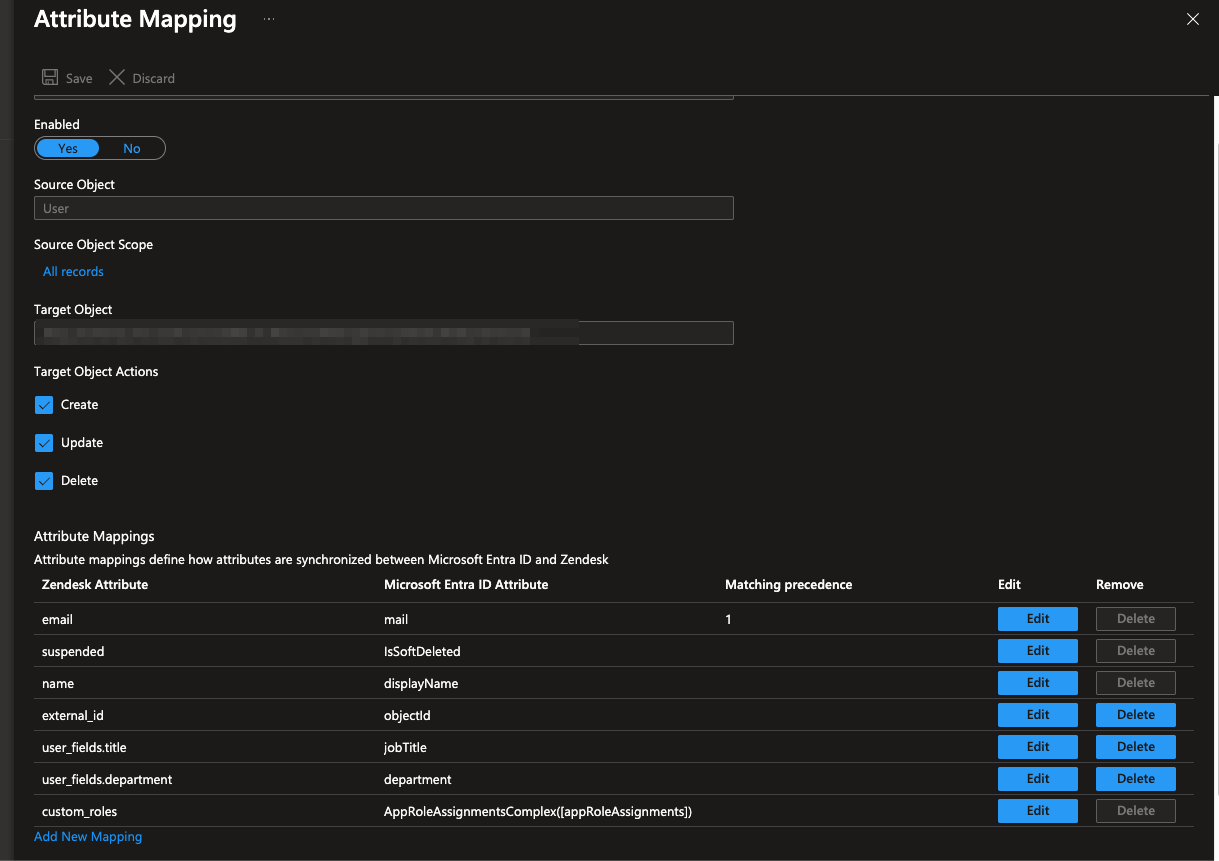
Confirmed the default attribute mappings (userPrincipalName to username, mail to the work email field, accountEnabled to active) and created a test user in Entra to provision through. Assigning a user in Entra's Zendesk app pushed them into Zendesk automatically as an End-user by default, with an option to assign the Agent role directly during that assignment step instead.
Step 3 of 3
Verify deprovisioning
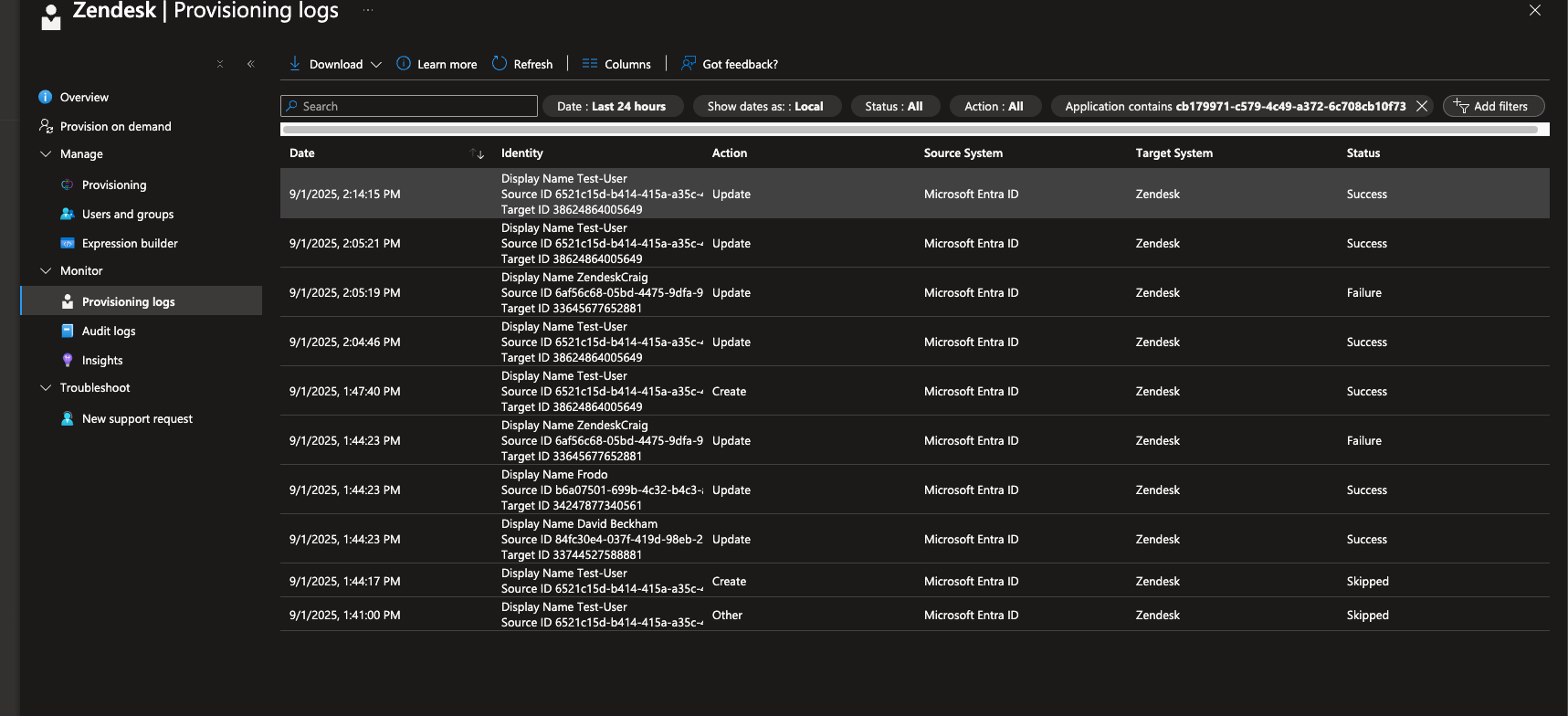
Removed the test user's assignment from the Zendesk app in Entra and ran on-demand provisioning. The account moved to suspended in Zendesk automatically, not deleted, which preserves ticket history and audit trail while still cutting off access.
What went wrong
Honest account
Hit three real issues in this build. First, an invalid credentials error using a different Zendesk admin email than the one that actually generated the API token, since the token is tied to that specific account, not to admin access in general. Second, the attribute schema download came back blank the first time, which turned out to require at least one custom field to exist in Zendesk before the schema would populate, fixed by adding a Department field and re-running it. Third, a test user got skipped during provisioning with an unprocessable entry error because they had no valid email attribute, fixed by adding a real email address to the account before re-running the sync.
What I learned
Takeaways
Provisioning connectors are less forgiving about data quality than SSO is. SSO just needs a user to authenticate. Provisioning needs a complete, valid profile before it will create anything, which means the usual identity hygiene problems, missing emails, accounts with no department set, surface immediately instead of staying invisible.
The default behavior of provisioning everyone as a Zendesk End-user, not an Agent, unless explicitly assigned otherwise is also worth remembering. It is a sensible default, least privilege by default, but easy to miss if you are only checking that an account exists and not what role it landed with.