Project 1
Active Directory Lab
Architecture
Overview
What was built
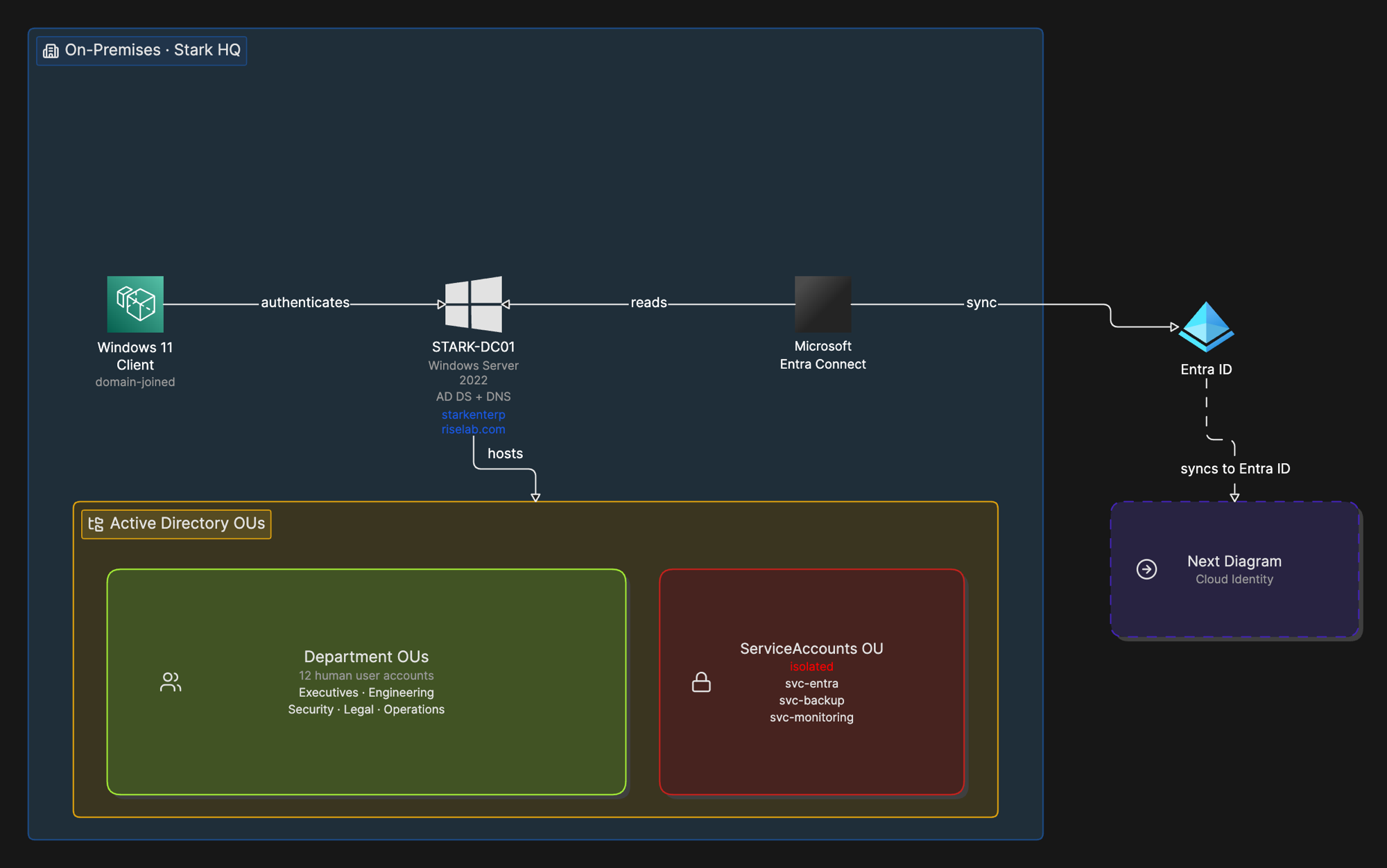
Built a production-style, on-premises Active Directory environment for a fictional company, Stark Enterprises, from bare metal. That means a Windows Server 2022 domain controller, a new AD forest, a six-department OU structure, fifteen user accounts split between human and service accounts, DNS, and a Windows 11 client joined to the domain to prove authentication actually works end to end.
The domain name and account naming convention were chosen deliberately to match a Microsoft Entra ID custom domain verified ahead of time, so this environment could sync cleanly into the cloud in the next project instead of requiring a UPN cleanup first.
Why
Why it matters
Every company running on Windows needs a central place to manage who has an account, what they can access, and how that access is organized. Active Directory is still that backbone for most enterprises, even the ones actively moving to the cloud.
Getting the fundamentals right here (a static IP and self-hosted DNS on the domain controller, a real OU structure instead of the default Users container, service accounts isolated from human accounts, deletion protection turned on by default) matters because every identity project that comes after it, SSO, provisioning, Conditional Access, hybrid identity, depends on this foundation holding up. A misconfigured domain controller or a flat, ungoverned OU structure does not stay a lab problem. In a real environment it becomes an audit finding, or worse, an incident.
How it works
The walkthrough
Step 1 of 7
Server foundation
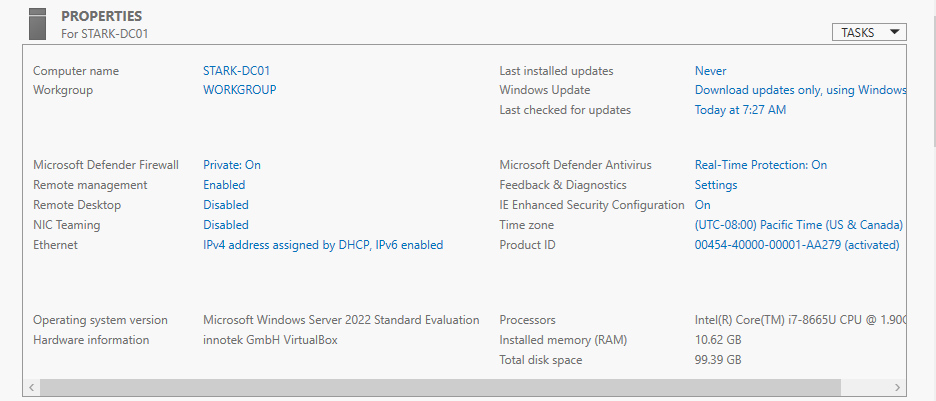
Started with a clean Windows Server 2022 install (Desktop Experience, for the GUI navigation and screenshots a lab needs). Renamed the server to STARK-DC01 following a simple naming convention (company, role, instance number) and assigned it a static IP, 192.168.1.10, with DNS pointed at itself.
A domain controller has to have a static IP. DNS records point at that address, and if it moves, authentication breaks across the whole domain.
Step 2 of 7
Domain controller promotion
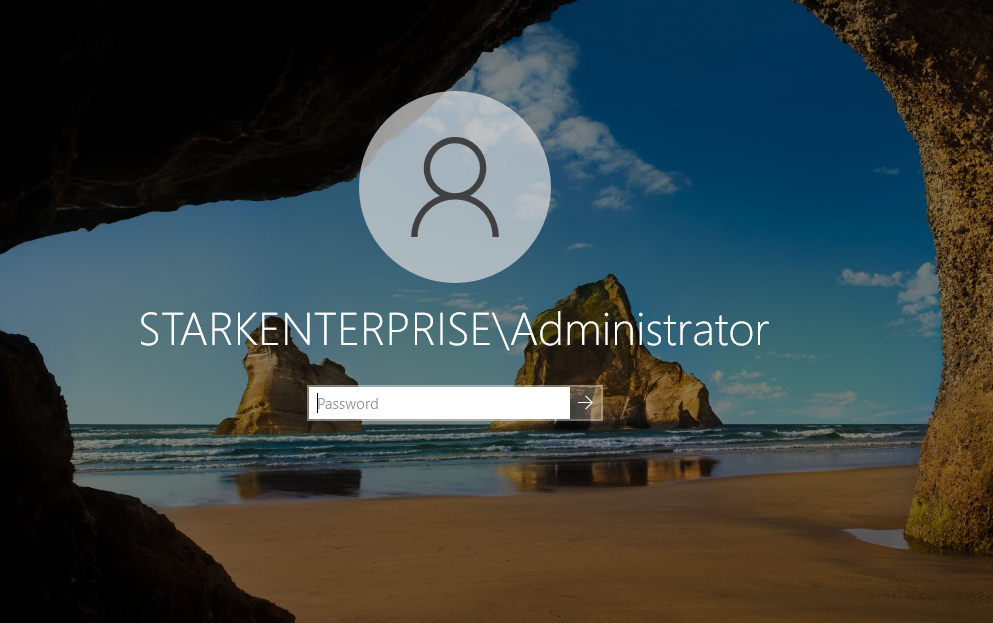
Installed the Active Directory Domain Services role, then promoted the server to create a brand new forest: starkenterpriselab.com. The domain name was not arbitrary. It matches the custom domain already verified in Microsoft Entra ID, which meant the environment could sync cleanly into the cloud later without renaming every user account first.
Forest and domain functional level were set to Windows Server 2016, modern enough for every feature this project needed and conservative enough to match what a real environment with older domain controllers would require.
Step 3 of 7
OU structure
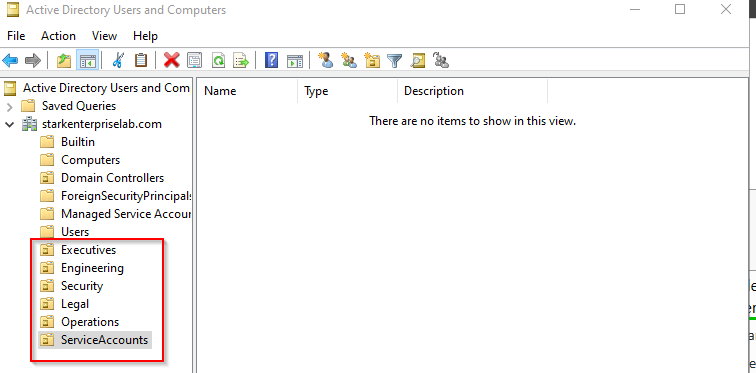
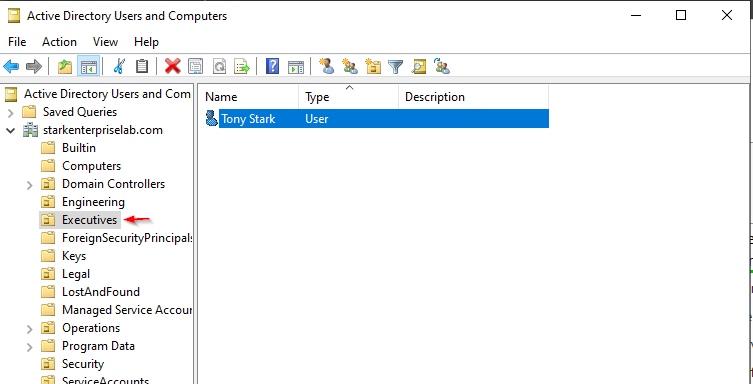
Built six Organizational Units (Executives, Engineering, Security, Legal, Operations, and ServiceAccounts) instead of leaving everyone in the default Users container. Group Policy can only target OUs, not the default container, so this structure is what makes department-specific security controls possible later.
Service accounts got their own OU, isolated from human accounts, since they need different password rotation and monitoring. Every OU had accidental deletion protection turned on at creation, a two-step safeguard against a mistake that would otherwise be very hard to undo.
Step 4 of 7
User accounts
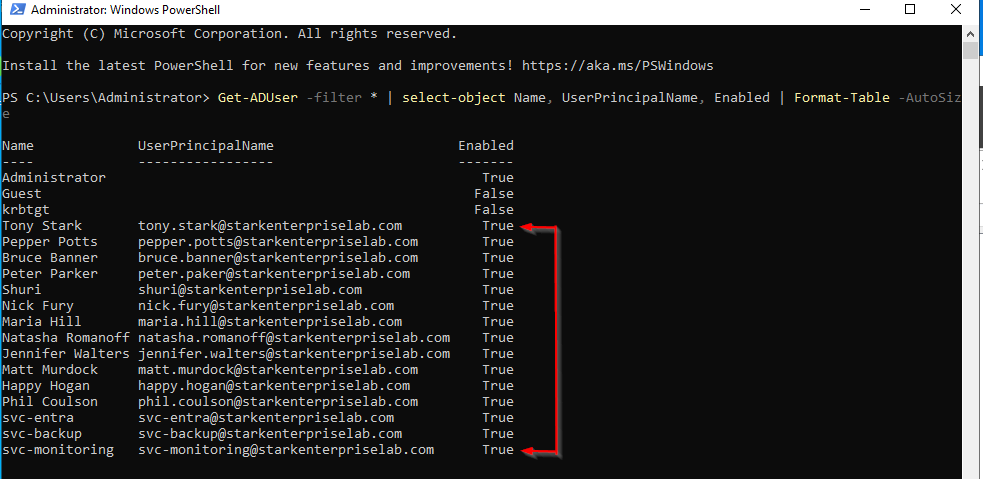
Created fifteen user accounts across the six OUs, following a firstname.lastname naming convention that matches Microsoft's recommended UPN format and keeps things predictable for cloud sync. Three of those accounts (svc-entra, svc-backup, svc-monitoring) are service accounts with their own password standard, separated from the twelve human accounts.
Step 5 of 7
Verification
Domain controllers do not allow regular users to log in locally, by design, so verification happened through PowerShell instead of a login screen: confirming all fifteen accounts existed with the right UPNs, checking OU placement through each account's distinguished name, confirming account health (enabled, not locked out, zero bad logon attempts), and resolving the domain's DNS record back to the DC's IP address.
Checking each piece independently, rather than assuming a wizard finishing meant everything was correct, is the same habit that matters in a production environment.
Step 6 of 7
Client authentication
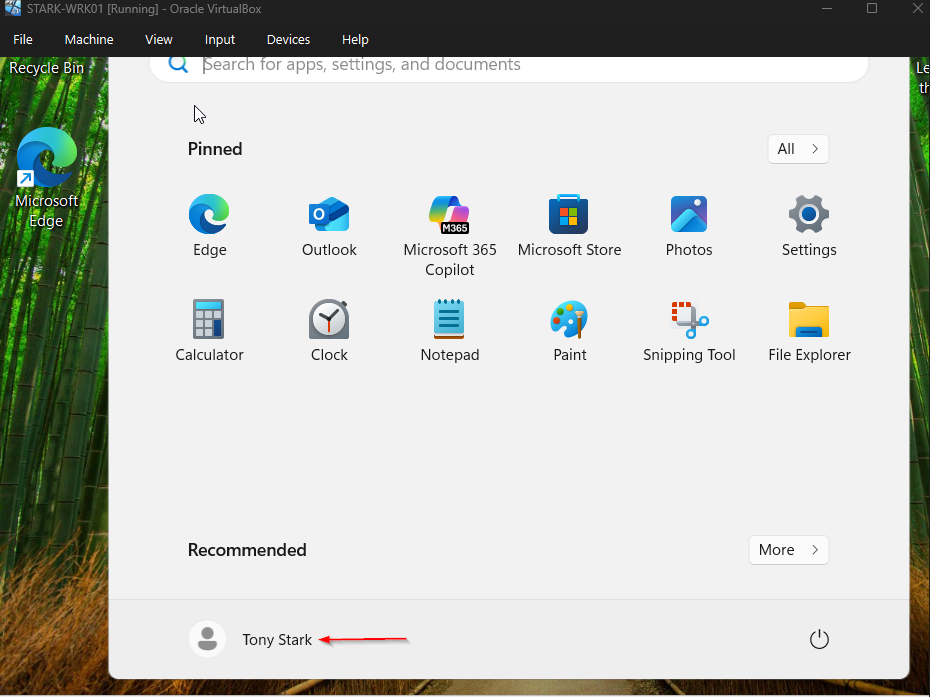
Added a Windows 11 workstation, joined it to the domain, and logged in as one of the domain users to confirm the full authentication chain actually works end to end, not just in the directory. whoami confirmed the login was a genuine domain authentication, and nltest confirmed the domain controller itself handled the request.
Step 7 of 7
Entra Connect
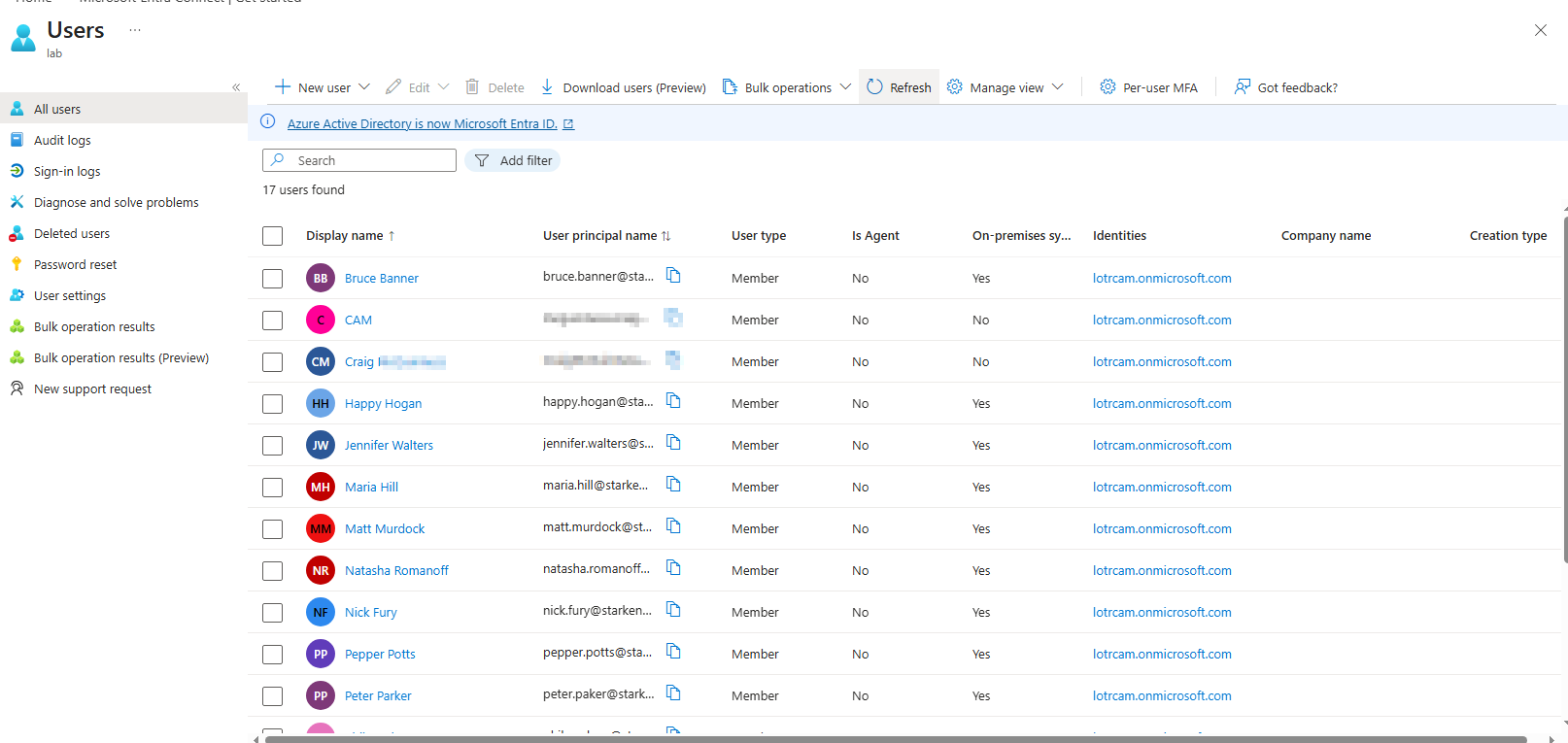
Installed Microsoft Entra Connect on the domain controller and ran the sync with Express Settings, the right choice for a single-forest, single-domain environment like this one. All fifteen on-premises accounts appeared in Microsoft Entra ID within the sync cycle, each one showing on-premises sync enabled.
This is the step that turns a self-contained AD environment into a hybrid identity setup, and it is also where a real configuration gap showed up. More on that below.
What went wrong
Honest account
The Entra Connect setup looked complete at the time. The wizard ran, users synced, and every account showed on-premises sync enabled in Entra ID. What I did not catch until the next project was that the domain controller had no real internet access when I ran that wizard, since it was still on an internal-only network for VM-to-VM communication. That silently broke credential validation on the optional features screen, and Password Hash Synchronization never actually got turned on, even though nothing in the wizard flagged it as failed.
The gap did not surface until Conditional Access went live in the follow-on Entra ID Lab project, when hybrid users started failing sign-in with error 53003. The fix, giving the domain controller real internet access, re-running Entra Connect with Password Hash Sync and Password Writeback explicitly enabled, and forcing a full sync cycle, is documented in that project. The root cause traces back to this one. A wizard finishing without errors is not the same as a wizard finishing correctly, and that is worth verifying before you build anything on top of it.
What I learned
Takeaways
Every decision in this project traces back to one of three questions: does it reduce attack surface, does it hold up past a handful of users, and does it prepare the environment for hybrid identity. That discipline, writing down the reasoning next to the steps and not just the steps, is what turns a lab into something a hiring manager can actually evaluate instead of a checklist of buttons clicked.
The Entra Connect gap was the more expensive lesson. A wizard that finishes without a visible error is not proof that every optional feature actually saved. I check network prerequisites first now, and I do not trust a green checkmark until I have verified the state it is claiming, a habit that would matter a lot more in a live tenant than it did in a lab.